








How to exclude internal traffic in GA4

Contributed by
SaaS Hackers
Excluding traffic from your office and staff's home addresses is recommended to ensure you are not muddying your website analytics data. Especially if your website doesn’t get a lot of traffic.
Assuming you have Google Analytics configured correctly then setting up your internal traffic filters is fairly straightforward. Here is how you do it in a few simple steps.
Step 1: get a list of IP addresses
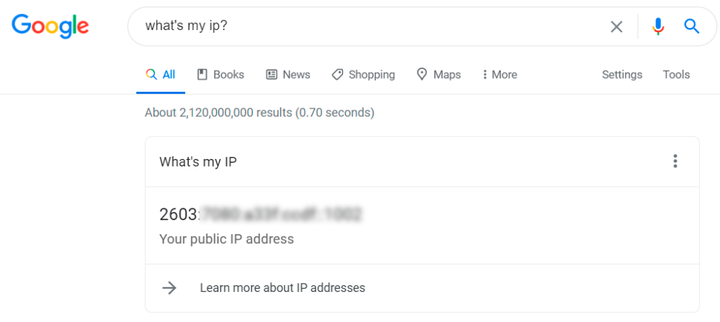
Probably the quickest way to do it is typing “what is my IP” into Google. Get everybody to do this in the location you want to exclude, you will then have a list of dedicated IP addresses to exclude from website traffic.
Step 2: Create a filter in your Data Stream
Go to your admin panel in Google Analytics and go to Data Streams.
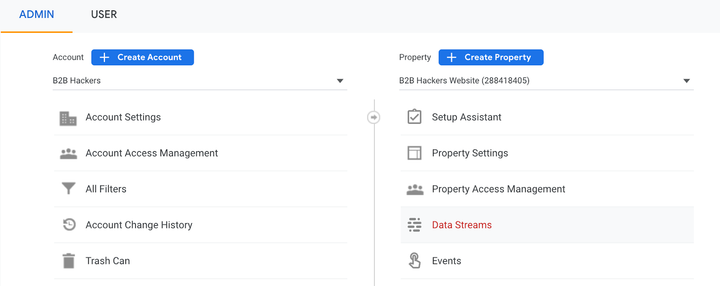
Once you have selected your data stream (usually you will only have one for a website).
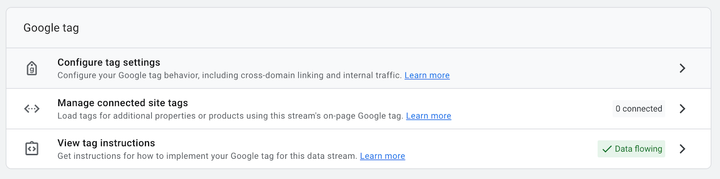
In your tag settings, you need to select ‘more’ and then select ‘define internal traffic’.
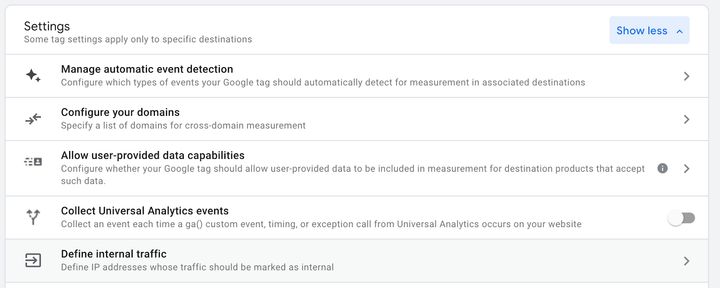
You then can create a filter for your internal traffic. To simplify things it's better to have one filter for each IP so that you can name them all and see which IP relates to which location.
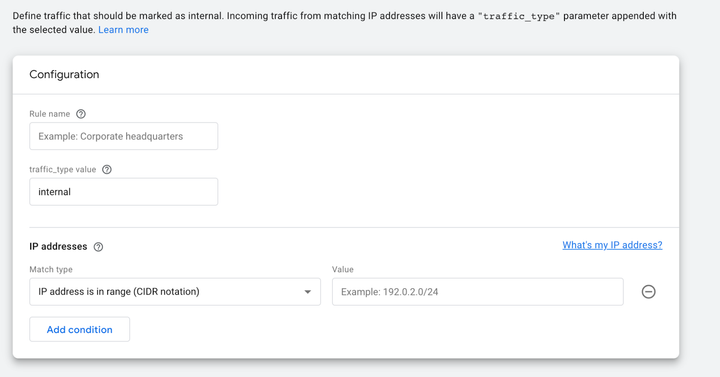
What this does is tag that traffic with a value of ‘internal’. You then have to go back into the admin panel and under ‘data settings’ go to ‘data filters’ and create one for “internal traffic’.
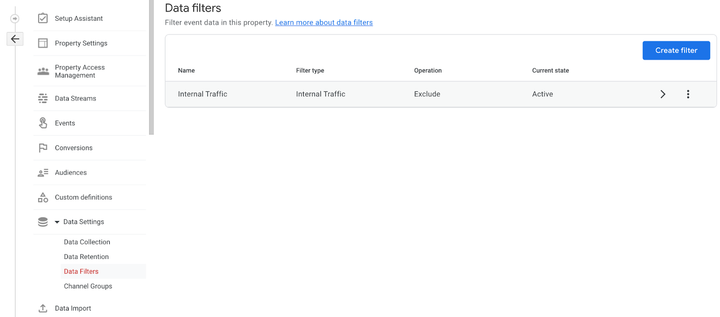
When you create this filter it basically creates another filter on a filter if that makes sense. So this creates a filter for everything which is tagged as ‘internal’. You then have to set this filter to ‘Active’ to make it work.
If you create the filter in the data stream but don’t create this filter you will still see the internal traffic.
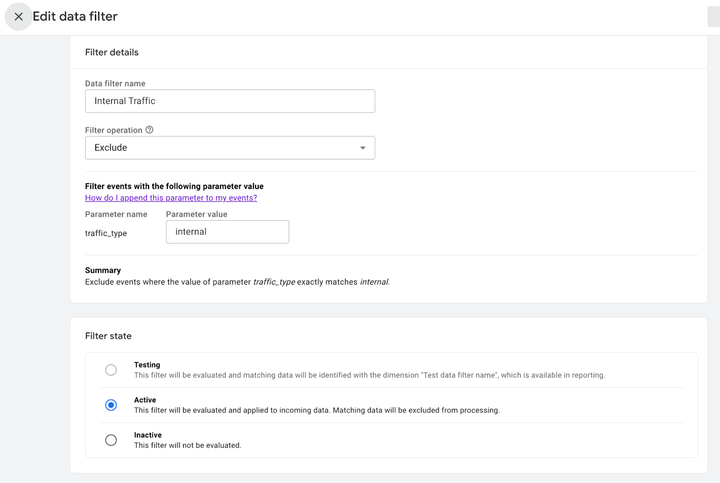
And that's it! It shouldn't take too long when you have the IP addresses. That is probably the bit which will take the longest to get. Happy filtering.
Contributed by
SaaS Hackers